 Swipt
Setup
Pair with Your Device
Swipt needs to pair with your device to connect to its developer services.
If you sideloaded Swipt with the Swipt CLI, pairing is set up automatically. Otherwise, follow the instructions to pair:
If you’re using iOS/iPadOS 27, you can pair on the device by following the instructions in the app:
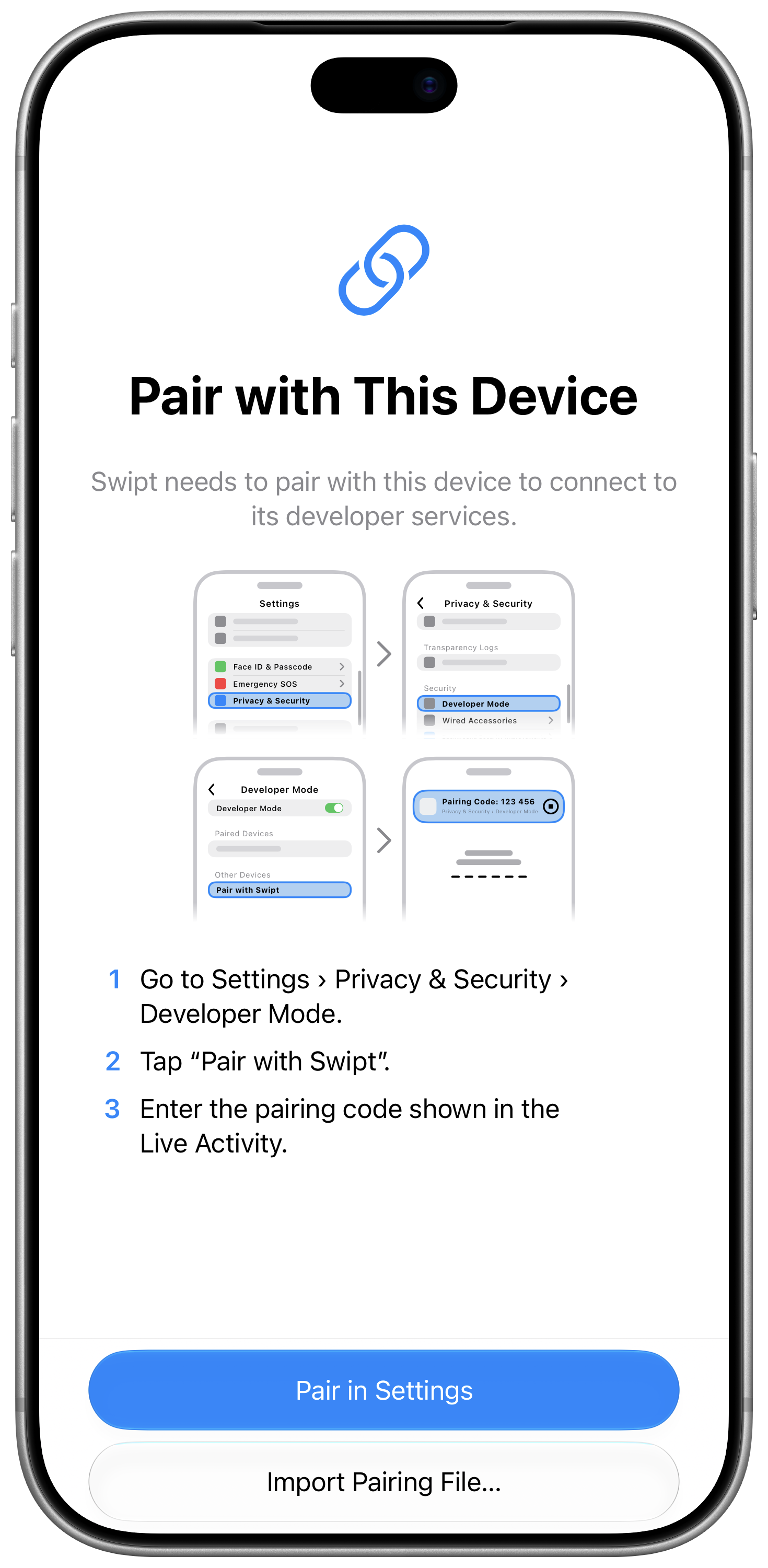
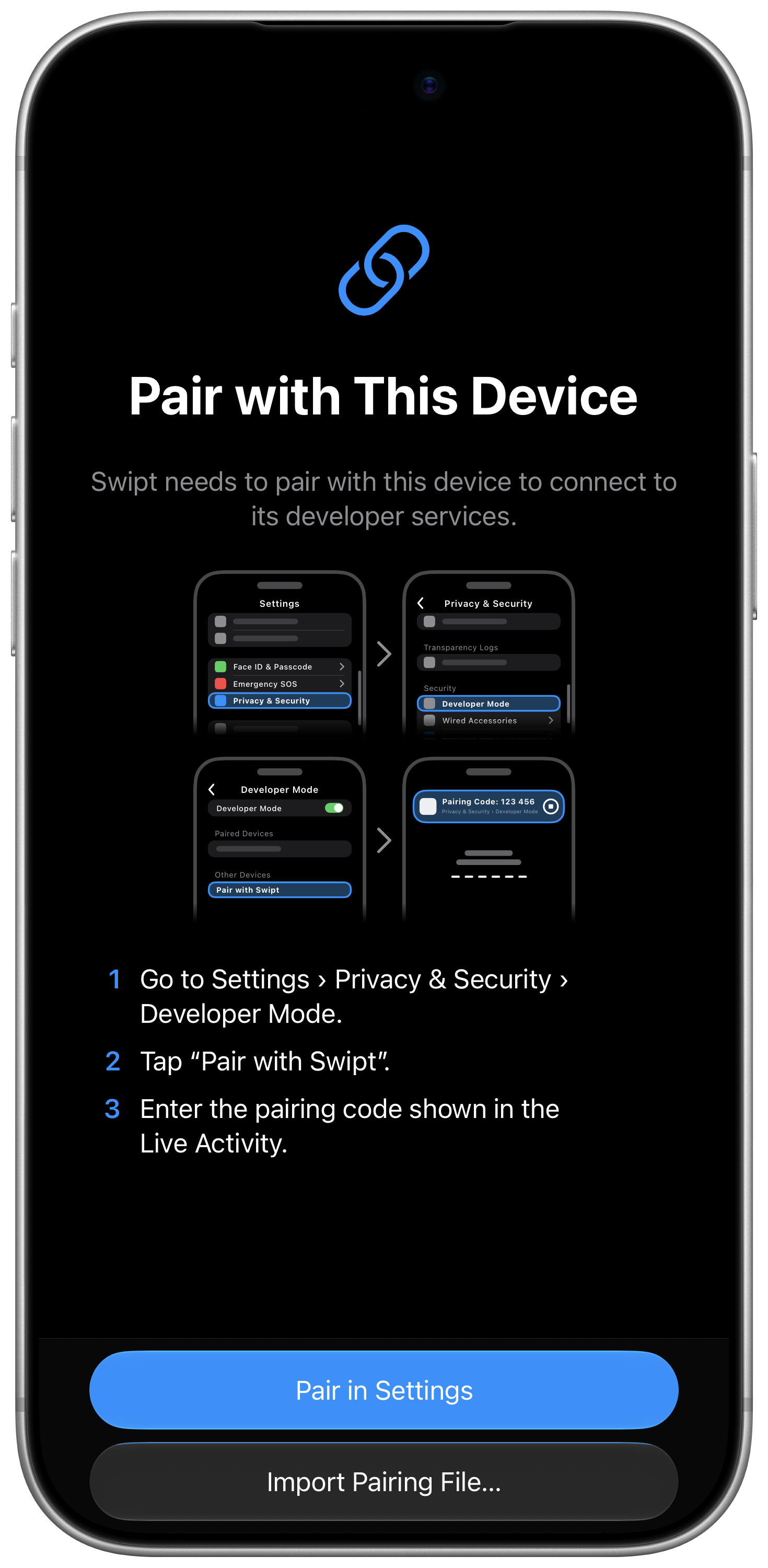
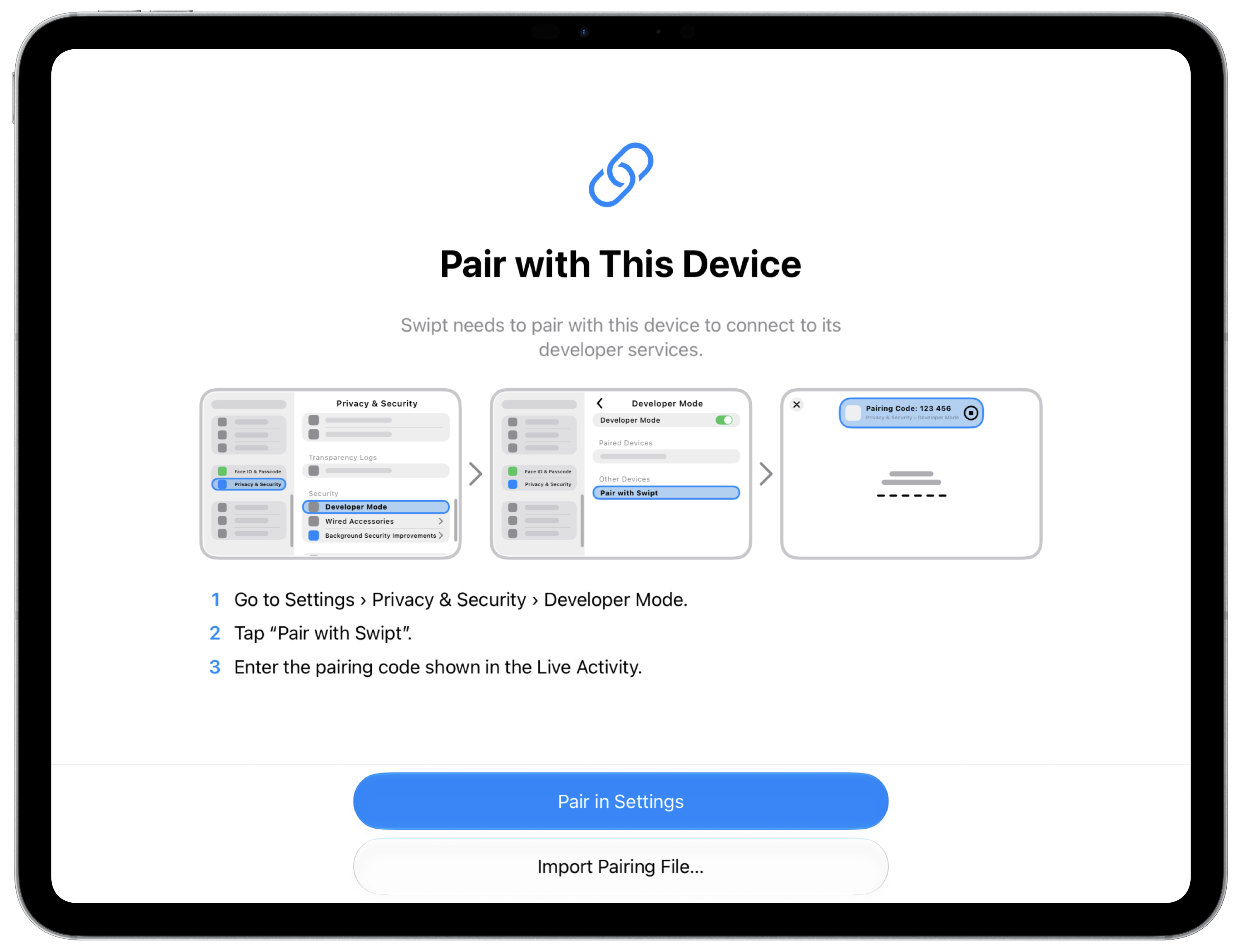
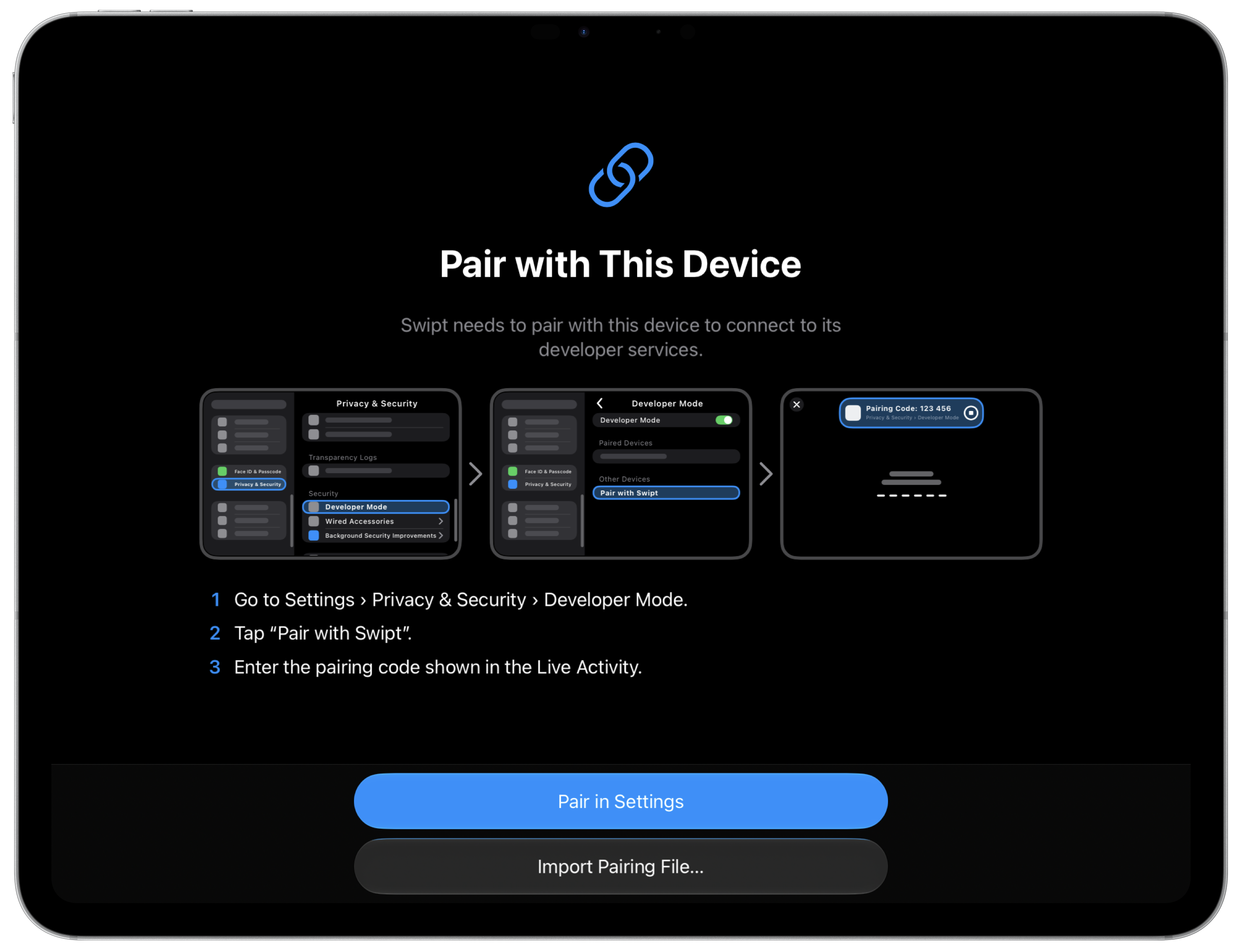
If on-device pairing fails, please open an issue.
If you’re using an earlier version of iOS and have a Mac, you can still use swipt sideload setup to set up pairing after sideloading manually. Otherwise, you need to pair with other software.
You can import pairing files created by almost any other software, including:
Here’s the most common way to get a pairing file:
- Download and install iloader. On Windows, install iTunes first. On Linux, install
usbmuxdif it isn’t preinstalled. - Connect your iPhone or iPad to your computer via a USB cable. If you are prompted, trust the computer and enter your passcode.
- Open iloader and select your iPhone or iPad.
- Select 'Manage Pairing File'.
- Select 'Export (Not Recommended)', then select 'Confirm' and save the pairing file.
- Transfer the pairing file to your iPhone or iPad, for example with AirDrop or iCloud Drive.
If you’ve installed SideStore before, you most likely already have a pairing file!
Loopback VPN
Swipt needs a loopback VPN to connect to developer services. The following software is supported:
LocalDevVPN
Install from the App Store and turn on the VPN.
sing-box
Install from the App Store, write a correct configuration, and turn on the VPN.
You need to configure tun.loopback_address and tun.route_address.
Example configuration:
{
  "inbounds": [
    {
      "type": "tun",
      "address": "172.19.0.1/30",
      "auto_route": true,
      "loopback_address": "10.7.0.1",
      "route_address": "10.7.0.1/32"
    }
  ],
  "route": {
    "auto_detect_interface": true
  }
}
Deploying it on a gateway, such as a router, makes it work for the entire local network.
Clash
Install from the App Store, write a correct configuration, and turn on the VPN.
You need to configure tun.loopback-address:
tun:
  loopback-address:
    - 10.7.0.1
Closed-Source Software
If you use Shadowrocket, turn on Include Route 10.7.0.1/32 in Settings, then reconnect the VPN. If you don’t see this option, update Shadowrocket.
If you subscribe to and use Surge, you need to configure General.tun-included-routes and IP Rewrite:
[General]
tun-included-routes = %INSERT% 10.7.0.1/32

[IP Rewrite]
10.7.0.1 = reflect
ipv6-vif = disabled is not necessary for Swipt.
For other Surge-like apps without public documentation, ask their developers how to configure it.
Automatic Unlock
Save your passcode so Swipt can unlock your device automatically when it’s locked.
Specifically, the Swipt CLI can unlock your device to start the Swipt API/MCP, and the Swipt CLI, MCP, and installed swiplets can unlock your device to operate it.